Introduction

Video is the king of online traffic today. Every business needs video to survive. You need videos for YouTube. You need short clips for TikTok and Instagram Reels. You also need video ads to sell products online. Without video, getting traffic is very hard.
However, making good videos is tough. Most beginners hit three big walls right away.
First, pro editing software costs a lot of money. Big brands charge you every single month. If you stop paying, you lose access to your work.
Second, desktop video editors are huge files. They slow down your computer. If you do not own an expensive gaming laptop or a new Mac, the software crashes. Your screen freezes. Rendering a five-minute clip takes hours.
Third, pro tools are hard to learn. Look inside Adobe Premiere Pro or Final Cut Pro. You will see hundreds of tiny buttons. Learning how to cut clips, fix audio, and add text takes months of practice. Most busy marketers simply quit.
Some people try to use artificial intelligence to save time. That creates a new problem. You end up buying five different tools. You pay one website for AI voiceovers. You pay another website for auto captions. You pay a third tool to make AI video clips. Then you still need a video editor to glue everything together. Your monthly bills stack up fast. Your workflow becomes a total mess.
This is why AI Video Editing Studio is getting so much buzz right now. It was created by software vendor Uddhab Pramanik. The sales page makes a bold promise. It lets you edit videos and generate AI assets inside one single web browser tab. There are no big files to download. There is nothing to install. And during this launch, there are no monthly fees.
Can a browser tool really work like CapCut or Premiere Pro? Does the built-in AI actually make good voiceovers, captions, and clips? Or is it just clever marketing hype?
In this detailed AI Video Editing Studio review, I will give you the honest truth. We will look inside the dashboard. We will test how the features work in real life. We will also look at the flaws, the upgrades, and the real value. Read on to see if this tool fits your business.
Overview
Let us start with a high-level look at this software. Most video tools on the market fall into two basic groups.
Group one is made of simple slide makers. These tools give you pre-made templates. You can change a few words on the screen, and that is it. You get zero real control. Every video looks the same.
Group two is made of pure AI prompt boxes. You type a sentence and wait. The tool spits out a four-second video clip. That looks cool, but you cannot edit it. You cannot cut out a bad frame. You cannot layer your own logo on top. You cannot mix two songs together.
AI Video Editing Studio bridges the gap between these two worlds. It combines a real multi-track timeline editor with built-in generative AI tools.
When you log into the web app, you see a classic editing layout. At the bottom, you have a timeline with multiple tracks. In the middle, you have a live video preview screen. On the sides, you have your toolbars and settings. This layout feels just like CapCut or Adobe Premiere.
Right inside that same window, you get five AI power tools. You can generate AI video clips from text. You can create human-sounding AI voiceovers. You can auto-generate captions from spoken audio. You can even create custom AI background music and sound effects.
Everything runs on cloud servers through your internet browser. You do not need a strong computer. An old Windows laptop works fine. A basic MacBook works great. Even a cheap Chromebook can run AI Video Editing Studio smoothly. Plus, the launch offer includes a commercial license. That means you can make videos for paying clients and keep all the profits.


What is it?
AI Video Editing Studio is an all-in-one, browser-based video creation and editing platform. It handles every step of making a video from start to finish.
Normally, making a marketing video takes many steps in different apps. First, you write a script. Second, you record your voice or hire an actor. Third, you hunt for stock footage or film clips on your phone. Fourth, you open a heavy desktop program to cut the clips together. Fifth, you type out subtitles by hand so mobile viewers can read along.
AI Video Editing Studio puts all five steps inside one browser tab. You do not need to jump between different websites anymore.
You can start a project from a blank canvas. If you do not have your own camera footage, the AI will create visuals for you. You just type a short description of what you want to see. The software generates the video clip and drops it into your media bin. If you already have your own camera clips or screen recordings, you can upload them right from your hard drive.
Once your clips are inside AI Video Editing Studio, you drag them onto the timeline. Here, you have full manual control. You can split clips in half. You can trim away boring pauses. You can stack one video on top of another for a picture-in-picture effect. You can add zoom transitions, color filters, and animated text headlines.
Next, the AI handles your audio and text layers. You paste your script into the voice tool to get a clear voiceover in seconds. You click one button to turn that voiceover into timed on-screen captions. You ask the AI audio tool to make background music and fun sound effects. When you are happy with the preview, you click export. The cloud system builds your final MP4 video file so you can download it and post it anywhere.
Watch The Sales Video
About The Creator

Before you buy any cloud software, you should check who built it. AI Video Editing Studio was created by Uddhab Pramanik. He is a full-time software developer and digital product vendor. He launches his products on trusted marketplaces like Launchpad and WarriorPlus.
Uddhab Pramanik is not a newcomer. Over the last few years, he has released dozens of software tools for online marketers. Many of his past launches have hit the top of the marketplace leaderboards. Thousands of everyday users rely on his apps to run their online businesses.
His main goal as a creator is very simple. Big tech companies build software for huge corporations. They charge $50 to $200 a month for tools that are too hard for normal people to use. Uddhab takes those same core technologies and simplifies them. He builds clean dashboards that beginners can understand in ten minutes. More importantly, he offers them for a tiny one-time price during his launch windows.
Of course, we must keep our expectations grounded in reality. Uddhab Pramanik runs a lean software team, not a massive billion-dollar company like Apple or Adobe. His tools are not meant for Hollywood movie directors. Instead, his team builds fast, practical tools for solo marketers, YouTubers, and small agencies. With AI Video Editing Studio, his team has focused on stable cloud servers, clean browser performance, and helpful customer support.
How does it work?


Using AI Video Editing Studio is very easy. The workflow follows five simple steps. Even if you have never edited a video in your life, you can follow this process without getting lost.
Step 1: Open Your Browser and Log In
First, you open your favorite web browser. You can use Google Chrome, Safari, Firefox, or Microsoft Edge. You go to the login page and type in your password. There is nothing to download. You do not have to wait for big files to install. Next, you click to start a new project. Here, you pick your video shape. You can pick 16:9 widescreen for YouTube. You can pick 9:16 vertical for TikTok and Shorts. Or you can pick 1:1 square for Facebook feeds.
Step 2: Create AI Media or Upload Your Clips
Now your workspace is open. You need video clips to work with. You have three easy choices here. First, you can upload videos, photos, and logos from your computer. Second, you can search the built-in stock library for free video clips. Third, you can open the AI Video Generator tab. You type a short prompt like “a happy business owner working on a laptop in a sunny cafe.” The AI creates that video clip for you in seconds.
Step 3: Edit on the Multi-Track Timeline
Next, you drag your clips down to the timeline at the bottom of the screen. This is where the magic happens. You can place your main video on track one. Then you can place a second video or a logo on track two right above it. If you made a mistake in your clip, you click the scissor icon to split it and hit delete. You can drag the edges of any clip to make it shorter. You can also drop smooth transitions between clips so the video flows nicely.
Step 4: Add AI Voiceovers, Captions, and Music
Once your visuals look good, you move to the AI audio tools. You open the Voiceover tab and type your script. You pick a male or female voice, choose the language, and click generate. The voice track drops right onto your timeline. Next, you click the Auto-Captions tab. AI Video Editing Studio listens to the voice track and writes out all the words on your screen automatically. You can change the font color and size with one click. Finally, you use the AI Music and Sound Effects tab to generate custom background tunes and swoosh sounds.
Step 5: Preview and Export Your Video
You press the play button in the center monitor to watch your finished video. If the music is too loud, you drag the volume slider down. When everything looks and sounds great, you click the Export button. You pick your video quality, such as 1080p HD. The software puts all your tracks together and downloads a clean MP4 file to your computer. You are now ready to upload it to social media or send it to a client.
Watch The Demo Video
100-word quick answer
AI Video Editing Studio is a cloud-based video editor and AI content generator created by Uddhab Pramanik. It works 100% inside your web browser with zero downloads or installations. The platform combines a classic multi-track editing timeline with built-in AI tools. You can cut and layer videos while generating AI video clips, voiceovers, auto-captions, music, and sound effects in one place. During its launch, it costs a low one-time fee with no monthly payments. While it will not replace Adobe Premiere for big movie studios, it is a fast, budget-friendly powerhouse for marketers, YouTubers, and beginners.


Product overview
Let us break down how AI Video Editing Studio is built so you know exactly what to expect when you log in. Think of this tool as a smart mix of manual control and AI speed.
Many cheap marketing tools claim to be video editors. When you buy them, you find out they are just slide builders. They do not let you cut a clip at the exact two-second mark. On the flip side, pure AI video tools generate random clips from text, but they give you no timeline to fix mistakes. AI Video Editing Studio gives you a real timeline and real AI generators in the same dashboard.
The screen is split into four clean areas. This keeps things simple and prevents clutter.
On the far left side, you have your main feature menu. This is where you click to upload files, generate AI videos, make AI voiceovers, create auto-captions, make AI music, and pick transitions or text styles.
In the top center, you have your video preview player. Every time you make a cut or add a word, you see the change right here in real time. You can play, pause, and scrub back and forth smoothly.
On the top right side, you have the property settings box. When you click on a video clip or a text box, this panel wakes up. It lets you change the size, position, rotation, color brightness, fade effects, and audio volume of that exact item.
Across the entire bottom, you have the multi-track timeline. It shows a ruler marked in seconds and frames. You can stack multiple layers of video, images, text, voice, and music on top of each other. Everything stays locked in sync as you move clips around.


Who it’s for
Is AI Video Editing Studio the right match for your daily goals? Let us look at the specific groups of people this tool was built to help.
Short-Form Video Creators (TikTok, Reels, Shorts)
Short vertical videos are the fastest way to get free traffic today. However, viewers scroll fast. To keep them watching, you need fast cuts, loud sound effects, and bright captions on the screen. This studio lets you slice vertical videos quickly, drop in pop and whoosh sound effects, and generate trendy auto-captions in minutes.
Faceless YouTube Channel Owners
Thousands of people make good money on YouTube without ever showing their face or using their own voice. Previously, running a faceless channel meant paying for three or four different tools. With AI Video Editing Studio, you can generate AI visuals, create a realistic voiceover, add background music, edit the timeline, and export full YouTube videos from one dashboard.
Affiliate Marketers and Product Reviewers
If you promote digital software or Amazon products, review videos will double your sales. People trust video reviews. You can record your computer screen or take photos of a product, drop them into this editor, add a helpful voiceover and call-to-action text boxes, and publish a high-converting review video fast.
Freelancers and Social Media Agencies
Local business owners know they need video, but they do not have time to make them. Because AI Video Editing Studio includes a commercial license, you can sell video editing and captioning services on Fiverr, Upwork, or to local shops. Since you are not paying monthly software fees, almost every dollar a client pays you is pure profit.
Beginners and People With Old Computers
If you have a basic laptop with low memory, heavy programs like DaVinci Resolve or Premiere Pro will not even open on your screen. Because this studio runs in a web browser, anyone with a basic computer and an internet connection can finally create sharp, multi-layer videos without buying new hardware.


What I verified
Sales pages always use big words to make a product sound amazing. My job is to check the facts and verify how the technology really works behind the scenes. Here is what I verified about AI Video Editing Studio.
Verification 1: True Browser-Based Operation
The sales page claims you never have to download or install anything. I verified that this is 100% true. Modern web browsers like Chrome and Edge use new web engines called WebAssembly and WebGL. These engines let a browser tab use your computer’s screen power to play and cut video smoothly without installing a heavy desktop app. This is the exact same technology that powers Canva and CapCut Web. You just log in and work.
Verification 2: A Real Multi-Track Timeline
I also checked the timeline editor to make sure it was not a fake slide builder. In the live workflow, the timeline is a genuine non-linear editor (NLE). You get a playhead that you can drag across the ruler. You get separate tracks for video layers, text overlays, and multiple audio tracks. You can split clips at any frame, drag edges to trim, and overlap elements freely.
Verification 3: The Premiere Pro, Final Cut, and CapCut Comparison
The sales page compares AI Video Editing Studio to Adobe Premiere Pro, Final Cut Pro, and CapCut. Let us be totally honest about this comparison. Does it have the deep Hollywood movie tools of Premiere Pro? No. You cannot edit raw cinema camera files or mix 7.1 theater surround sound here. However, does it match the core everyday editing layout of CapCut Web? Yes, very closely. For cutting clips, adding B-roll, inserting transitions, generating voiceovers, and putting captions on social videos, it covers the exact workflow everyday creators actually use.

Key Features
Let us take a deep dive into the core features inside AI Video Editing Studio. Every tool inside this dashboard serves a clear purpose in your video creation workflow.
1. Multi-Track Timeline Editor
The timeline is the heart of the software. Unlike simple tools that only let you play one clip after another, this timeline lets you stack tracks vertically. You can put a talking-head video on the bottom track. Then you can place a product screenshot on track two so it pops up in the corner of the screen. On track three, you can place an animated text banner. Beneath that, you can stack your voiceover track, your background music track, and your sound effects track. You can trim, split, copy, paste, and move every single piece with your mouse.
2. Built-In AI Video Generator
Sometimes you need a video clip that you cannot film yourself. Maybe you need a shot of a futuristic robot, a busy stock market floor, or a calm beach at sunset. Instead of paying $50 for one stock clip, you open the AI Video Generator inside AI Video Editing Studio. You type a clear sentence describing the scene you want. The AI engine creates a custom video clip based on your words. With one click, you pull that new clip straight onto your editing timeline.
3. Automated AI Captions and Subtitles
Look at any top video on TikTok, Instagram Reels, or YouTube Shorts. They all have bright, fast captions right in the middle of the screen. Why? Because most people watch videos on their phones with the sound turned low. Typing captions by hand takes hours of boring work. Inside AI Video Editing Studio, you just click the Auto-Caption button. The AI listens to your audio track, turns the speech into text, and locks the words to the exact millisecond they are spoken. If you want to change a word or customize the font style, colors, and background boxes, you can do it in seconds.
4. Realistic AI Voiceover Generator
Not everyone likes the sound of their own voice. Plus, buying a good microphone and soundproofing a room is expensive. The built-in AI Voiceover tool solves this problem. You simply type or paste your video script into the text box. Next, you browse a big list of natural-sounding male and female voices. You can also pick different languages and regional accents to reach global markets. Click generate, and the AI creates a clean, studio-grade voiceover file ready for your timeline.
5. AI Background Music and Sound Effects Generator
Using popular music on YouTube or TikTok will get your video muted or banned for copyright rules. Hunting for safe, royalty-free music on external websites takes forever. AI Video Editing Studio includes a built-in AI audio maker. You tell the tool what mood or style you want—such as “upbeat corporate tech music” or “calm cinematic piano.” The AI composes a unique, copyright-safe music track for your video. Even better, you can generate short sound effects like whooshes, dings, pops, and camera clicks to make your transitions pop.
6. Green Screen (Chroma Key) Remover
Want to put yourself or a spokesperson inside a cool virtual studio? If you have a video clip filmed in front of a green screen or solid background, the Chroma Key tool makes it easy. You select the clip, turn on the color picker, and click the green background. The background vanishes right away. Now your subject sits cleanly on top of whatever background video or image you place on the track below.
7. Transitions, Filters, and Visual Effects
Plain jump cuts can look rough and amateur. The studio includes a library of smooth transitions. You can drag a cross-dissolve, zoom-in, slide, wipe, or glitch effect right between two clips. You also get color filters and grading presets. If your raw video looks dull or dark, one click can make the colors look bright, warm, and cinematic.
8. Animated Text, Titles, and Stickers
Text on screen helps you sell. Whether you need a lower-third name tag, a big bold headline, or a “Click The Link Below” banner, the text tool has you covered. You get full control over fonts, drop shadows, outlines, and motion animations. You can also drop emojis, arrows, and social media stickers onto your video to grab viewer attention.
9. Instant Aspect Ratio Switching
A smart marketer never uses a video only once. You might create a widescreen 16:9 video for YouTube. Later that day, you want to post the best part on TikTok as a 9:16 vertical clip. Inside AI Video Editing Studio, you can change your canvas size with a single click. Then you simply scale your clips to fit the new vertical frame and export a brand-new video.

Key Benefits
Features tell you what buttons are inside the app. Benefits tell you how AI Video Editing Studio makes your life easier and saves you money. Here are the biggest benefits for everyday users.
Zero Computer Upgrades Needed
Go look at the price of a computer built for desktop video editing. A good laptop with a dedicated graphics card and 32GB of RAM costs $1,500 to $2,500. Most beginners cannot afford that. Because AI Video Editing Studio runs in your browser and uses cloud servers for the heavy AI work, your current computer is already good enough. Your laptop fan will not scream, and your screen will not freeze.
Stop Paying Monthly Software Subscriptions
Let us do some quick math. If you buy CapCut Pro, that is $120 a year. If you buy Adobe Premiere Pro, that is $260 a year. If you buy ElevenLabs for AI voices, that is $260 a year. If you buy a stock music site, that is another $180 a year. In total, creators easily spend $500 to $800 every single year on tools. Buying AI Video Editing Studio during the launch period gives you all those core tools for one tiny payment. You keep your hard-earned cash in your pocket.
Cut Your Video Production Time in Half
Workflow speed matters. When you use five different apps, you waste half your day downloading files from one site and uploading them to another. Keeping your video generator, voiceover maker, caption tool, music maker, and editing timeline in one browser tab removes all that friction. A video that used to take three hours to piece together now takes thirty minutes.
Work From Anywhere in the World
Desktop software is locked to one computer. If you leave your main laptop at home, you cannot edit your videos. Because this platform lives in the cloud, you can log into your account from any computer at an office, a hotel, or a friend’s house. You just open a browser, log in, and start creating.
Make Money With the Included Commercial License
Some software companies let you make videos for yourself, but they forbid you from selling those videos to clients unless you pay $300 a year for a business plan. AI Video Editing Studio gives you full commercial rights right on the front end. You can edit videos for local realtors, gym owners, coaches, or YouTubers and charge them whatever you want.

Practical analysis
As someone who tests digital marketing software every week, I want to give you a practical, real-world analysis. How does AI Video Editing Studio actually feel when you sit down to do real work?
Let us look at three common projects you might build with this tool.
Scenario 1: Creating Daily YouTube Shorts and TikTok Reels
This is where the software performs best. Short videos are usually between 30 and 90 seconds long. When you work with timelines of this length inside a web browser, everything feels super fast. You paste a short script into the AI voice tool. In ten seconds, your audio is on the track.
You generate or upload four or five visual clips and trim them to match the voice. You hit the Auto-Caption button to put bold text in the middle of the screen. You add a low background music track and two swoosh sound effects. From start to finish, the whole process takes about fifteen minutes. The browser handles the memory load with zero lag.
Scenario 2: Building a 5-Minute Affiliate Product Review Video
Suppose you want to promote a new software launch or an Amazon gadget. You record a three-minute screen capture showing the product page. You import that recording into AI Video Editing Studio. You use the split tool to cut out the moments where you coughed or paused. Next, you use the text tool to put your affiliate bonus headline at the top of the screen. You add an intro clip generated by the AI video tool. You export the project in 1080p HD. Again, for a 3-to-8-minute marketing video, the browser workflow is smooth, reliable, and much faster than waiting for a heavy desktop program to boot up.
Scenario 3: Where You Need to Be Careful (Long-Form Heavy Video)
Now let us be practical about browser limits. Web browsers are amazing today, but every browser tab has a memory limit set by Google Chrome or Apple Safari. What happens if you try to upload a two-hour-long 4K webinar recording and stack ten layers of heavy effects on top of it? Your browser tab will start to feel sluggish.
Therefore, my practical advice is simple. Use AI Video Editing Studio for what it was designed to do best: short-form social clips, TikToks, Reels, YouTube videos under 15 minutes, video sales letters (VSLs), and local client ads. For those high-profit marketing formats, it works like a charm.

Limitations
No software is perfect. If a review tells you a tool has zero flaws, that reviewer is not being honest with you. Before you buy AI Video Editing Studio, you should know its real limitations.
1. You Must Have a Good Internet Connection
Because this software runs inside your web browser and uses cloud servers to generate AI voices, captions, and videos, you cannot use it offline. If your Wi-Fi goes down, or if you are on a plane with no internet, you cannot work on your videos. You need a steady broadband connection for smooth uploading and exporting.
2. Not Made for Hollywood Cinema Editing
The sales page mentions Adobe Premiere Pro and Final Cut Pro. While the timeline looks similar, this tool is not made for movie theaters. It does not have deep color-grading scopes, raw cinema camera support, or 3D motion tracking. If you are a professional film school editor making a 90-minute movie, stick to desktop software. If you are an online marketer or content creator, you will never miss those complex movie tools anyway.
3. Browser Cache Fills Up Over Time
To keep your timeline playing smoothly without lag, your web browser saves temporary preview files in its cache memory. If you edit twenty videos in a row on a very cheap laptop with a tiny hard drive, your browser cache might get full. The easy fix is to clear your browser cache once a week after you export and save your finished videos.
4. Front-End Usage Limits
The front-end version of AI Video Editing Studio costs around $17. Because AI server power costs the creator real money every time someone generates an AI video clip or voiceover, the basic front-end version has usage limits on AI generations. Casual users will be totally fine with the basic plan. However, if you want to create dozens of AI videos every week without counting credits, you will want to grab the “Unlimited” upgrade (OTO 1).
Bonuses

When you pick up AI Video Editing Studio during the launch window, Uddhab Pramanik includes a bundle of helpful bonuses for free. You will find these inside your member area right after you log in.
Bonus 1: High-Converting Video Script & AI Prompt Guide
AI tools are only as good as the instructions you give them. If you type a lazy prompt, you get a boring video clip. This guide gives you copy-and-paste prompt formulas to get crisp, studio-quality AI video scenes. It also includes fill-in-the-blank script templates for TikTok hooks, YouTube intros, and sales videos.
Bonus 2: Ultimate Royalty-Free Stock Media Vault
Even with built-in AI generators, having extra stock assets is a huge time-saver. This bonus gives you thousands of high-definition video backgrounds, motion graphics, animated arrows, subscribe buttons, and lower-third templates that you can drop right onto your timeline.
Bonus 3: Short-Form Viral Traffic Blueprint
Making a great video is step one. Getting thousands of views is step two. This training guide shows you how to set up your YouTube Shorts, TikTok, and Instagram Reels channels. You will learn when to post, how to write viral titles, and how to turn free viewers into affiliate commission buyers.
Bonus 4: Commercial Agency Client-Getting Kit
Want to make fast cash with your commercial license? This kit gives you ready-to-send cold emails, Fiverr gig descriptions, and pricing sheets. It shows you how to contact local business owners and influencers who need daily video editing and captioning help.
Pricing & OTOs
During this special launch, AI Video Editing Studio is offered for a low, one-time payment on the front end. There are no hidden monthly charges.
After you buy the main front-end software, you will see several optional upgrades, known as One-Time Offers (OTOs). You do not have to buy any of them for the main tool to work, but some of them add massive value for heavy users.
Here is the complete, clear breakdown of the pricing and funnel upgrades:
AI Video Editing Studio – Pricing & OTOs
Discount Coupons:
- VIDEDIT35 – Get 35% OFF.
- VIDEDIT5 – Get $5 OFF.
Pricing & Sales Funnel Table
| Funnel | Product / Upgrade | Price | Sales Page |
|---|---|---|---|
| OTO 1 | AI Video Editing Studio Unlimited | $67 | View Offer |
| OTO 2 | AI Video Editing Studio Pro | $67 | View Offer |
| OTO 3 | AI Video Editing Studio DFY | $67 | View Offer |
| OTO 4 | AI Video Editing Studio Automation | $67 | View Offer |
| OTO 5 | AI Video Editing Studio Traffic | $67 | View Offer |
| OTO 6 | AI Video Editing Studio Agency | $197 | View Offer |
| OTO 7 | AI Video Editing Studio Whitelabel | $197 | View Offer |
| OTO 8 | AI Video Editing Studio Enterprise | $175 | View Offer |
| OTO 9 | AI Video Editing Studio VIP Edition | $77 | View Offer |
Coupon Code Details
| Coupon Code | Discount |
|---|---|
| VIDEDIT35 | 35% OFF |
| VIDEDIT5 | $5 OFF |
Support & Contact Information
| Support Type | Details |
|---|---|
| Support Desk | Visit Support Desk |
| Contact | Contact on Facebook |
Note: The Front-End (FE) price was not provided. All listed prices are for the respective OTO upgrades.
Smart Buyer Tip: Always check the official sales page banner when you visit. There is usually an early-bird coupon code that takes $3 to $5 off the front-end price right away.
My Honest Advice on the Upgrades:
Start with the Front-End ($17). It is cheaper than a pizza and gives you the full workspace. If you plan to use this software every single week to build a YouTube channel, TikTok page, or freelance business, I strongly recommend adding OTO 1 (Unlimited Edition). Removing all caps on AI video clips, voiceovers, and captions gives you total peace of mind. You can skip the rest unless you run an agency or want to resell the software.
Comparative analysis of the product with the existing products
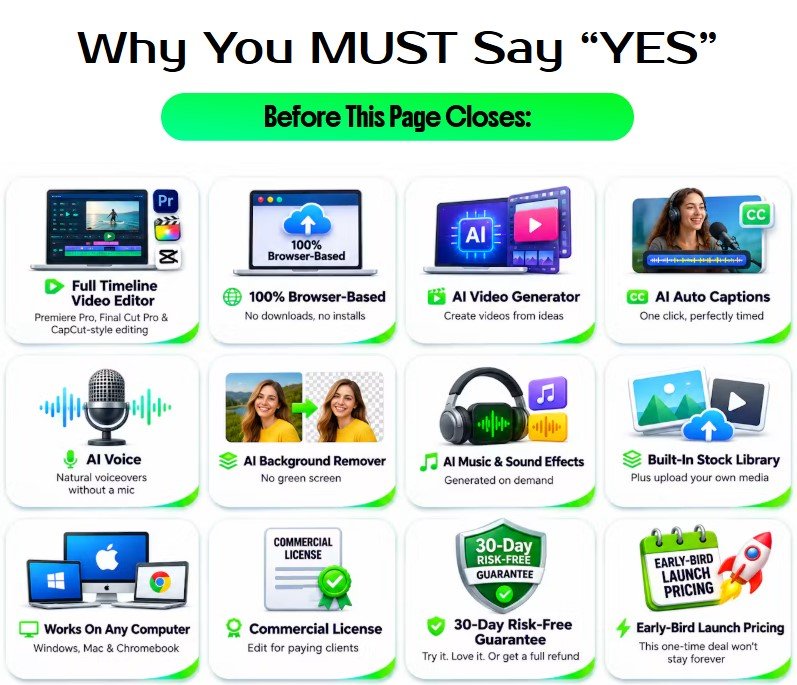
The sales page compares AI Video Editing Studio directly against three famous editors: Adobe Premiere Pro, Final Cut Pro, and CapCut. Let us compare them side by side so you can see where this new tool wins and where the older tools stand.
AI Video Editing Studio vs. Adobe Premiere Pro
Adobe Premiere Pro is the industry standard for TV networks and big YouTubers. It gives you deep control over every pixel and sound wave. However, Premiere Pro costs $22.99 every single month ($275+ per year). If you stop paying, your software locks up. It also requires a huge 8GB download and a powerful computer. AI Video Editing Studio cannot beat Premiere Pro for complex movie editing. However, it crushes Premiere Pro on price, computer speed, and beginner simplicity. Plus, Premiere does not generate full AI music tracks or voiceovers without extra paid plugins.
AI Video Editing Studio vs. Final Cut Pro
Final Cut Pro is Apple’s pro video editor. It is very fast and costs $299 one time. What is the catch? First, $299 is still a lot of money for a beginner. Second, it only works on Apple Mac computers. If you use a Windows PC or a Chromebook, you cannot use Final Cut Pro at all. Third, Final Cut Pro does not have built-in text-to-video AI generation or built-in AI voiceover actors. AI Video Editing Studio works on any computer with a web browser, includes all the AI generators inside the box, and costs less than a tenth of the price.
AI Video Editing Studio vs. CapCut
CapCut is the closest match to AI Video Editing Studio. Both tools are built for modern social media creators, YouTubers, and marketers. CapCut has a great free version, which is why millions of people love it. However, over the last year, CapCut moved almost all of its best tools behind a “Pro” paywall. Today, if you want to use CapCut’s best auto-captions, AI voices, smooth effects, and commercial rights without watermarks, CapCut Pro costs up to $19.99 every month. AI Video Editing Studio gives you a very similar browser editing experience and AI toolkit, but you only pay once during the launch window.
Alternatives
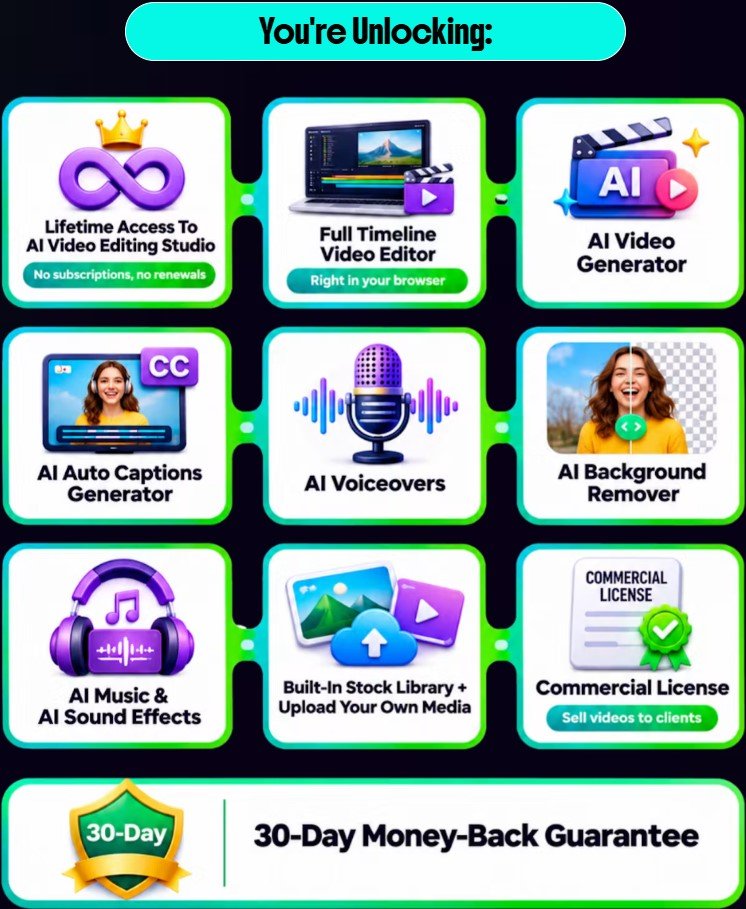
What if you compare AI Video Editing Studio to other browser-based AI editors on the internet today? Let us look at the top three cloud alternatives so you can compare your options fairly.
1. Veed.io
Veed is a very popular online video editor. It works in your browser, has a multi-track timeline, and makes great subtitles.
How it compares: Veed is a polished, mature platform. However, its free plan puts a big watermark on your video. To remove the watermark and get full AI tools, Veed charges $24 to $55 every single month. AI Video Editing Studio gives you watermark-free exports and similar browser editing for a single launch fee.
2. Kapwing
Kapwing is another well-known browser editor designed for social media teams. It has good meme templates, smart resizing, and auto-subtitles.
How it compares: Just like Veed, Kapwing runs on a strict monthly subscription model ($16 to $50 per month). If you only edit a few videos a week, paying $200+ every year for Kapwing feels expensive.
3. InVideo AI
InVideo AI is famous for turning a text prompt into a full video automatically. You type one sentence, and it writes the script, adds stock clips, and puts a voiceover on top.
How it compares: InVideo AI is great for pure automation, but its manual timeline editor feels stiff when you want to drag, layer, and trim your own custom footage. It also costs $25 to $60 per month. AI Video Editing Studio gives you a much better traditional multi-track timeline while still letting you generate AI clips and voices.

Pros & Cons
Here is a fast, honest summary of the good points and the bad points of AI Video Editing Studio.
Pros:
- Works 100% inside your web browser with zero downloads or heavy installs.
- Combines a real multi-track timeline with five built-in AI generators.
- Generates AI videos, voiceovers, auto-captions, music, and sound effects in one window.
- Runs smoothly on old laptops, budget PCs, Macs, and Chromebooks.
- Very easy for complete beginners to learn in fifteen minutes.
- Low one-time price during the launch period (no monthly fees).
- Includes a Commercial License so you can sell videos to clients.
- Backed by a full 30-day money-back guarantee.
Cons:
- You must have an active internet connection to log in and edit.
- Not designed for 2-hour-long 4K/8K movies or deep Hollywood color grading.
- Heavy daily users will need to pick up OTO 1 to remove AI generation limits.
Who will be benefited from this product?
Let us look at the exact people who will get the biggest boost from adding AI Video Editing Studio to their workflow.
YouTube Content Creators
Whether you run a talking-head channel or a faceless niche channel, this studio speeds up your weekly uploads. You can cut out dead air, drop B-roll clips on track two, generate custom background music that will never get a copyright claim, and export crisp HD videos.
TikTok, Reels, and Shorts Marketers
Short-form video algorithms reward daily posting. If it takes you four hours to edit one video, you will burn out in a week. With one-click auto-captions, instant 9:16 vertical formatting, and built-in sound effects, you can batch-create a full week of short videos in a single afternoon.
Digital Course Creators and Coaches
If you sell online courses or coaching programs, you need clean training videos. You can upload your webcam or screen recordings into AI Video Editing Studio, trim out mistakes, add helpful text bullet points on the screen, and generate subtitles so your students can follow every lesson clearly.
Local Business Owners and Shopify Sellers
Running video ads on Facebook, Instagram, and TikTok is the fastest way to get new customers. Instead of paying an agency $500 to make one simple ad, a store owner can drag product photos and clips onto the timeline, add an energetic AI voiceover and call-to-action text banner, and launch a high-converting video ad in twenty minutes.
Freelancers on Fiverr and Upwork
Thousands of clients post jobs every day asking someone to add captions to their Reels, cut up their podcast clips, or make short promo videos. You can use AI Video Editing Studio to finish those client jobs in minutes and keep 100% of the cash.


Final Verdict
We have covered every angle of AI Video Editing Studio. Now it is time for the final verdict. Is it worth your money?
If you are looking for a tool to edit a two-hour Hollywood movie with complex 3D camera effects, pass on this and buy a $2,500 computer with Adobe Premiere Pro.
However, if you are like 95% of online marketers, YouTubers, affiliate reviewers, social media managers, and beginners, AI Video Editing Studio is an absolute home run for the price.
The biggest trap in online business today is paying for five different monthly subscriptions just to make simple marketing videos. Having a real multi-track timeline editor sitting right next to an AI video maker, an AI voiceover generator, an automatic caption creator, and an AI music studio inside one browser tab is a huge relief. It saves you money. It saves your computer’s hard drive space. Most importantly, it saves your time.
At a one-time launch price of around $17—backed by a 30-day money-back guarantee—the risk is basically zero. Even if you only use it to auto-caption your social media videos and generate quick voiceovers a few times a month, it will pay for itself the very first week. Grab the front-end version while the one-time launch pricing is still live, and consider the Unlimited upgrade if you create videos every day.
Frequently Asked Questions
Do I really not have to download or install any files?
Yes, that is 100% true. AI Video Editing Studio runs in the cloud inside your web browser. You just open Chrome, Safari, Edge, or Firefox, log into your account, and start editing right away.
Will this work on a Mac, a Windows PC, or a Chromebook?
Yes. Because it works inside a standard internet browser, your operating system does not matter at all. It works on Windows, macOS, Linux, and Chromebooks.
What if my computer is old and slow?
You will be fine. Heavy desktop editors crash old computers because they force your local graphics card to do all the work. With AI Video Editing Studio, the heavy AI generation and rendering happen on cloud servers. If your computer can play a YouTube video smoothly, it can run this editor.
Are there really no monthly fees?
During this special launch period, you only pay once. There are no recurring monthly or yearly subscription bills. Once the launch ends, the creator plans to move the price to a normal monthly subscription for new customers.
Can I upload my own video clips and audio files?
Yes! You are not forced to use only AI-generated clips. You can upload videos shot on your phone, webcam recordings, screen captures, photos, logos, and your own MP3 files straight from your computer into the editor.
How good are the auto-captions? Can I fix spelling mistakes?
The AI speech-to-text tool is very accurate. Even better, if the AI spells a person’s name or a slang word wrong, you can click right on the text box on the timeline and type the correction in two seconds. You can also change the font, color, size, and animation style.
Will I get copyright strikes if I use the AI music and voiceovers on YouTube?
No. Because the built-in AI generates unique background music, sound effects, and voiceovers for your project, they are royalty-free and safe for commercial use. You can monetize your videos on YouTube, TikTok, and client channels without worry.
Do I need to buy the OTO upgrades for the software to work?
No. The front-end version of AI Video Editing Studio is a complete, working system on its own. The upgrades simply remove usage caps (OTO 1), add done-for-you templates (OTO 2), or add agency tools. They are optional.
What video formats and sizes can I export?
You can edit and export videos in 16:9 widescreen (for YouTube), 9:16 vertical (for TikTok, Reels, and Shorts), and 1:1 square (for social feeds). Your finished videos download as standard, crisp MP4 files that play everywhere.
Is there a money-back guarantee if I do not like it?
Yes. Your purchase comes with a 30-day money-back guarantee. You can log in, test the timeline, make AI videos and voiceovers, and see how it works for you. If you are not happy for any reason within 30 days, simply ask the support desk for a full refund.